MCP Setup Guide
fo-semantic-mcp Setup for Codex
Configure the MCP server with OpenAI Codex CLI
About Codex CLI
OpenAI Codex CLI is a lightweight coding agent that runs in your terminal. It supports the Model Context Protocol (MCP), allowing you to connect fo-semantic-mcp for AI-assisted D365 F&O development.
Configuration Steps
-
Locate Your Codex Config File
Codex stores its configuration in
config.toml:Windows:
C:\Users\<username>\.codex\config.tomlmacOS / Linux:
~/.codex/config.toml -
Get Your API Key
Sign in to xplusplus.ai and get your API key from the dashboard.
Get API Key -
Add MCP Server Configuration
Open your
config.tomlfile and add the fo-semantic-mcp server configuration:# Your existing Codex settings model = "gpt-4.1" model_reasoning_effort = "medium" # FO-Semantic MCP Server for D365 F&O [mcp_servers.fo-semantic] command = "npx" args = ["-y", "fo-semantic-mcp"] [mcp_servers.fo-semantic.env] FOINDEX_API_KEY = "your_api_key_here" FO_LOCAL_ASSETS_PATH = "C:\\Users\\YourName\\AppData\\Local\\Microsoft\\Dynamics365\\10.0.xxxx\\PackagesLocalDirectory" FO_SEARCH_DEFAULT_LIMIT = "10" FO_THRESHOLD = "0.7"Configuration Options
FOINDEX_API_KEY (required) - Your API key from xplusplus.ai
FO_LOCAL_ASSETS_PATH (recommended) - Path to your local F&O PackagesLocalDirectory for XML file reading
FO_SEARCH_DEFAULT_LIMIT - Number of search results (default: 10)
FO_THRESHOLD - Relevance threshold 0-1 (default: 0.5) -
Restart Codex
Save the config file and restart Codex CLI. The MCP server will be automatically downloaded and started via npx.
-
Test the Connection
Try asking Codex to search for F&O artifacts:
> List the F&O forms that involve CustTable
Example in Action
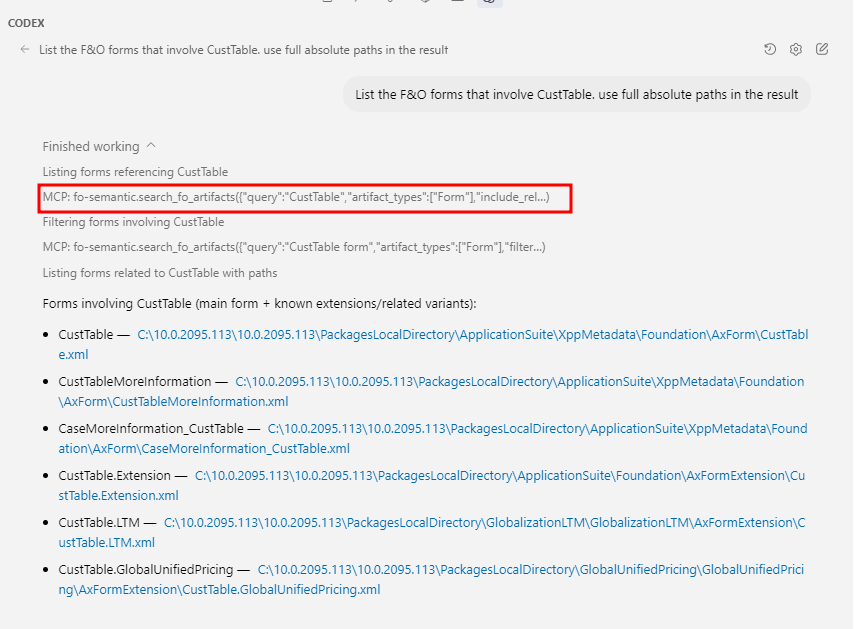
Here's what it looks like when Codex uses the MCP server to find F&O forms related to CustTable:
What's Happening
When you ask about F&O artifacts, Codex automatically invokes the MCP server's search_fo_artifacts function. The server queries the xplusplus.ai artifact index and returns matching results with their local file paths.
Finding Your PackagesLocalDirectory
To enable local XML file reading, you need to set FO_LOCAL_ASSETS_PATH to your F&O installation:
Typical Windows path:
PowerShell command to find it:
Note: Use double backslashes (\\) in the TOML config file for Windows paths, or use forward slashes (/).
Troubleshooting
MCP server not starting?
- Ensure Node.js 18+ is installed
- Check that npx is in your PATH
- Verify your API key is correct
No results returned?
- Try lowering the FO_THRESHOLD value (e.g., 0.5)
- Check your API key has available quota
- Try a simpler search query
Ready to Start?
Get your API key and start using AI-assisted F&O development with Codex